
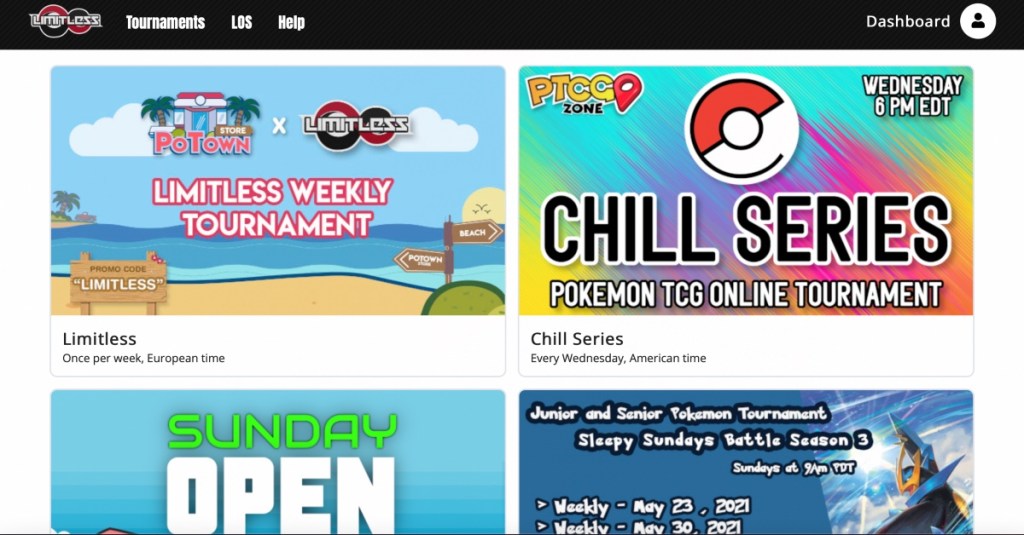
Want to join online tournaments like the Philippines Open, the Chill Series or The Sunday Open, but not sure how or where to start?
The Limitless online platform (https://play.limitlesstcg.com) is easy to use and very straightforward. Here’s what you need to do to get started.
| All Play Limitless tournaments require you to have a Pokemon TCG Online (PTCGO) account. Do be sure to have one ready with the cards you need before proceeding further. Do check out our guide on how to get started on PTCGO, which includes what starter deck to get and how to trade for good Pokemon cards on PTCGO. |
1. Register an account
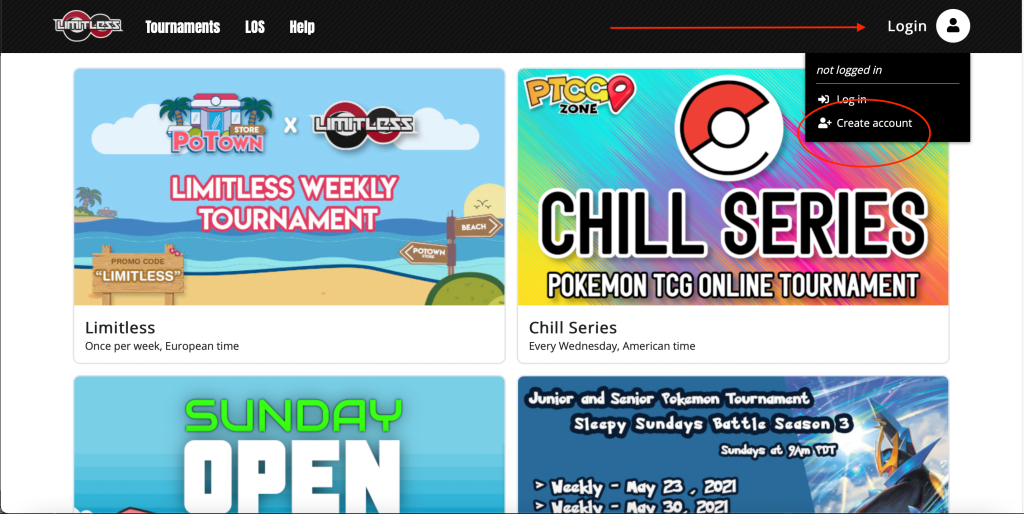
All you’ll need to do is click on the Login icon on the top right of the Play Limitless homepage, and select Create Account.
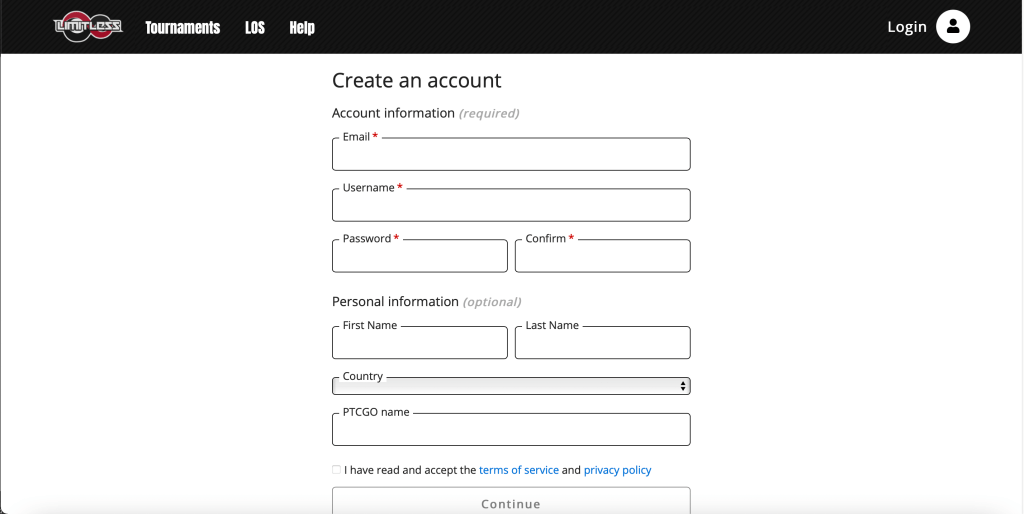
Enter your details including your Pokemon TCG Online (PTCGO) name, check the box to say you have “read and accept the terms of service and privacy policy” and click Continue. You should be prompted to enter a verification code that is sent to your e-mail to complete the registration. Once you’ve done so, now you’re ready to play some tournaments.
2. Join a tournament
Once you’ve logged into your account, the icon on the top right will change its name to Dashboard.
Next, it’s time to join a tournament. Click Tournaments on the top left of the Play Limitless homepage. Under Most Relevant, you should see a list of upcoming tournaments over the next seven days. The tournaments with a star labelled are top Limitless tournaments, with their results published under the Completed part of the Play Limitless page.

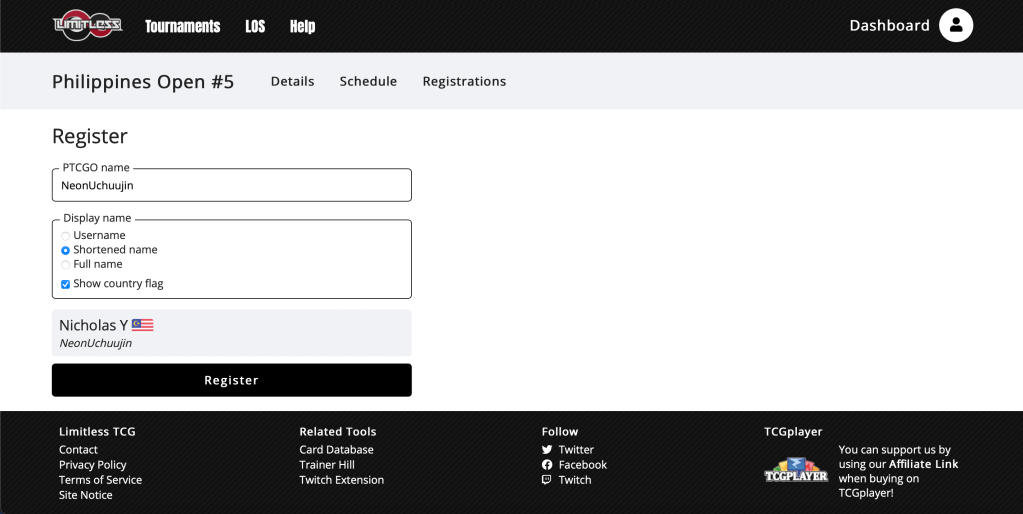
For this example, lets join the Philippines Open #5. The tournament information should appear. Click on Register Now on the right.

On this screen, you will be asked to confirm your PTCGO Name (very important!), plus how will you like your Display Name to look during the tournament bracket and standings. Once you’re ready, click on Register.
Next, you’ll need to submit a deck list before the deadline. You can either do this on the tournament information page we registered from earlier, or go to your Dashboard. Your Dashboard should show you how long you have before you need to submit a deck list for the tournament.
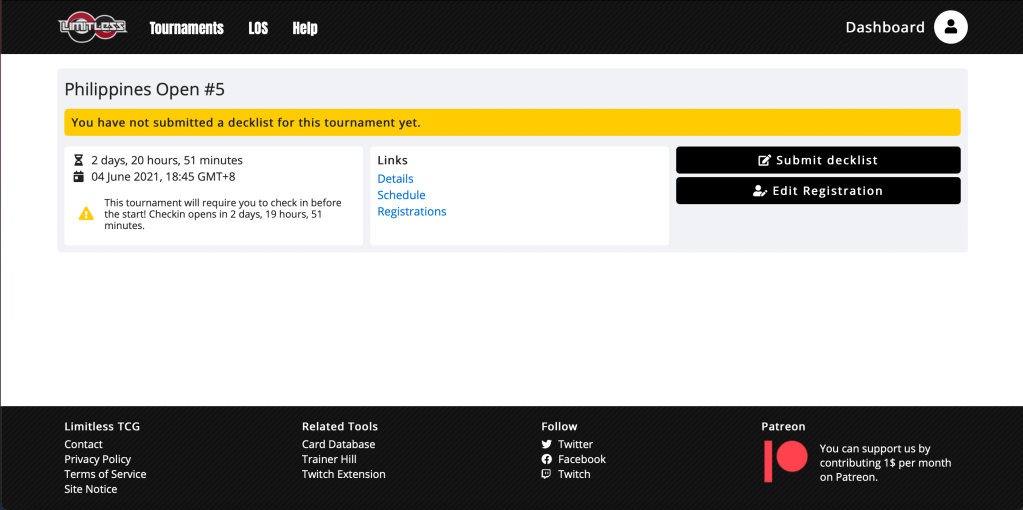
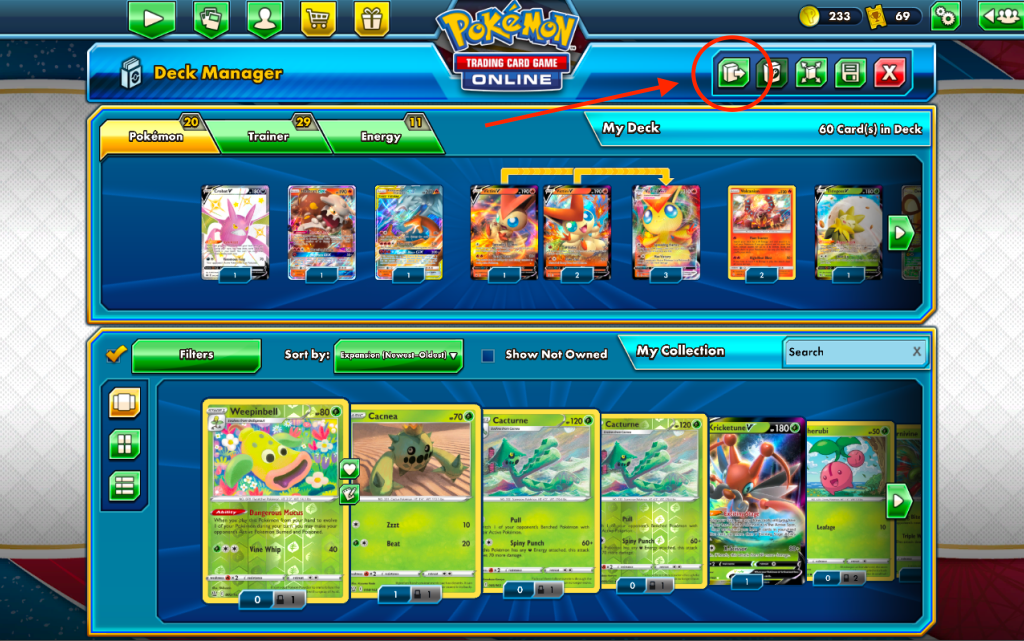
The Submit Decklist page allows you to paste a deck list from PTCGO. To copy your list, You need to go to Deck Manager, open your deck, and click this icon to copy your deck list.
Then just paste the deck list under Submit Decklist, click Submit on the bottom and you’re ready. If you want to Edit your deck list, you can do so under Dashboard.

It would be great for you to join the tournament’s Discord channel for announcements from the organiser. It is also easier to contact the organiser should you have a dispute.
Now all you have to do is wait for your tournament to begin!
3. Playing a tournament
When the tournament starts, the tournament information page show more options at the top. It should show the Pairings for Round 1 but if it doesn’t, click on Pairings.
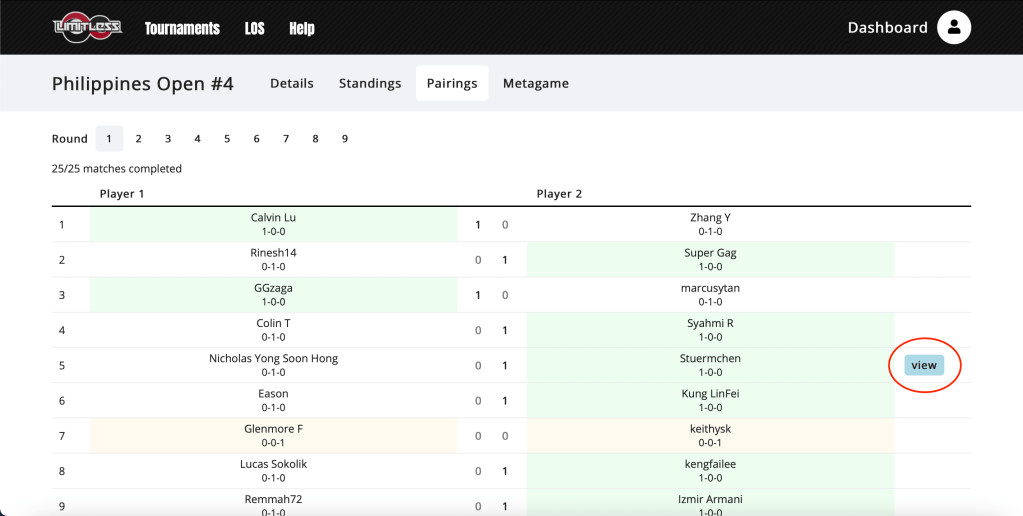
Scroll down to find your opponent. Your pairing should be the only one with a View button appearing on the right side. Click that View button.
You should see a chat screen. From here, you will need to click Check In to confirm your entry. Next, you (or your opponent) needs to add the other person on PTCGO as a friend. Then you (or your opponent) will need to initiate a battle.
If the tournament allows it, you can scroll down to view your opponent’s deck list.
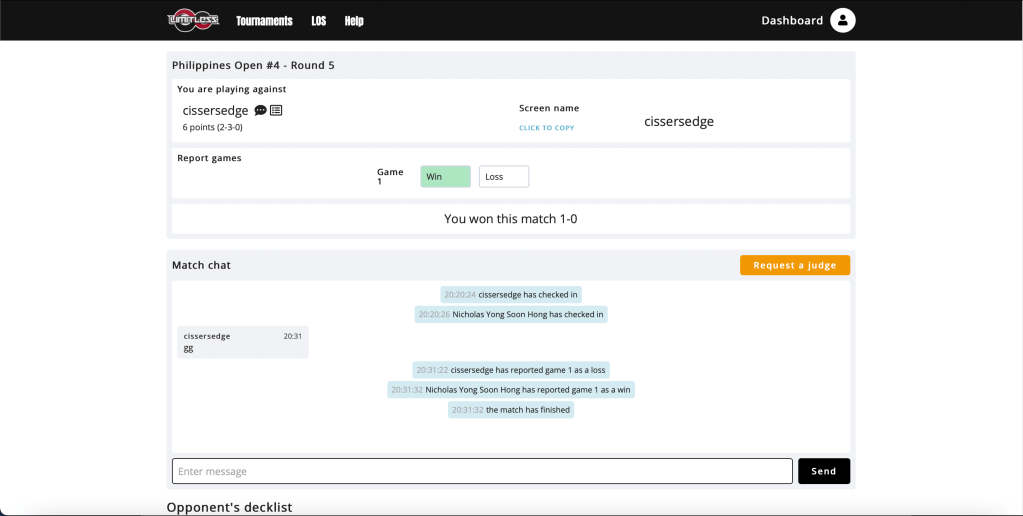
Once the match is done (either a best of 1, or best of 3 match), just click on the result if you’ve Won or Loss that match. Please be honest. It’s easy to detect if you do not report the correct result through the Game Log or if your opponent is livestreaming the game.
If you’ve finished your round before the time limit, you’ll need to wait until everyone is done and for the organiser to initiate Round 2.
Click on the Standings to view the current results of the tournament.
Good luck and hope you win!
 The Southern Islands